
From estimate to finished job.
Follow these steps to estimate, book and finish a job. The pictures use sample records.
Try a sample job1. Set up your business
Add your name, logo and contact details in Business settings. Set your usual rates, services, tax settings and estimate terms. You can change them later.
2. Create the estimate
Choose a saved customer and vehicle, or add a new one. List the work, set the price and add any optional extras. Vehicle details are optional.
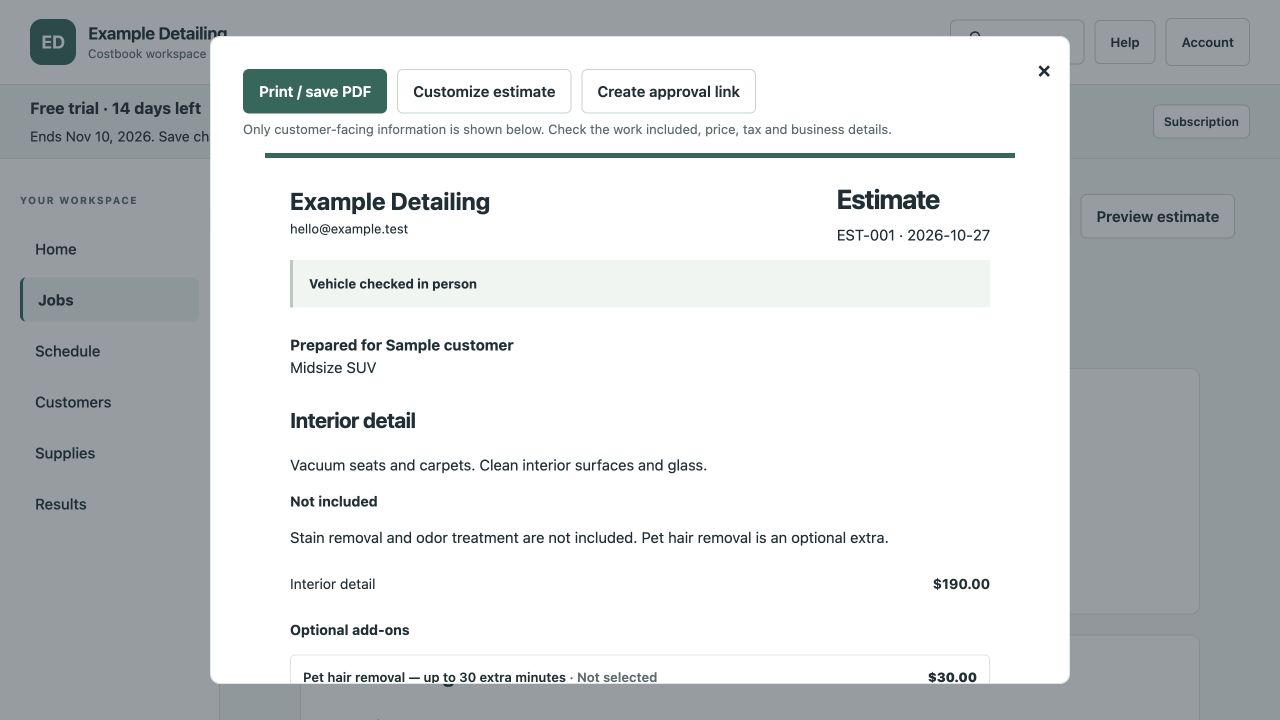
Check the vehicle before confirming the price
Start with a preliminary estimate if the condition is uncertain. Inspect the vehicle, confirm the included work and price, then share the final approval link.
3. Preview and get approval
Check the customer preview, then copy the link into your message. Your customer can choose extras and approve the price. Approval does not make a payment or book a time.
If the work changes, agree on the new work and price before starting it. Send the revised estimate for approval.
4. Plan the appointment
Add an appointment and the expected time. Adjust the duration when needed. If you enable online booking requests, customers can request a time for you to confirm.
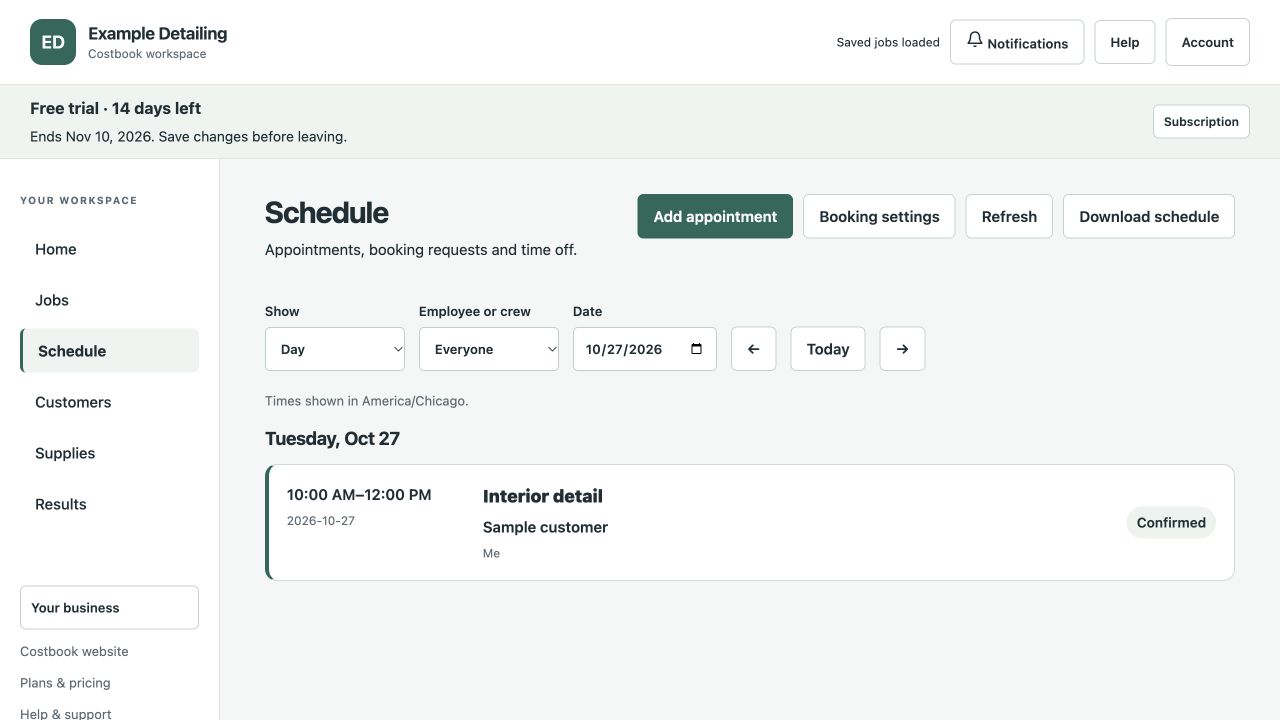
5. Record the work and payments
Track working time and the supplies used. Enter an amount, a percentage or a fraction of a pack. Record deposits, cash, card payments and refunds when they happen.
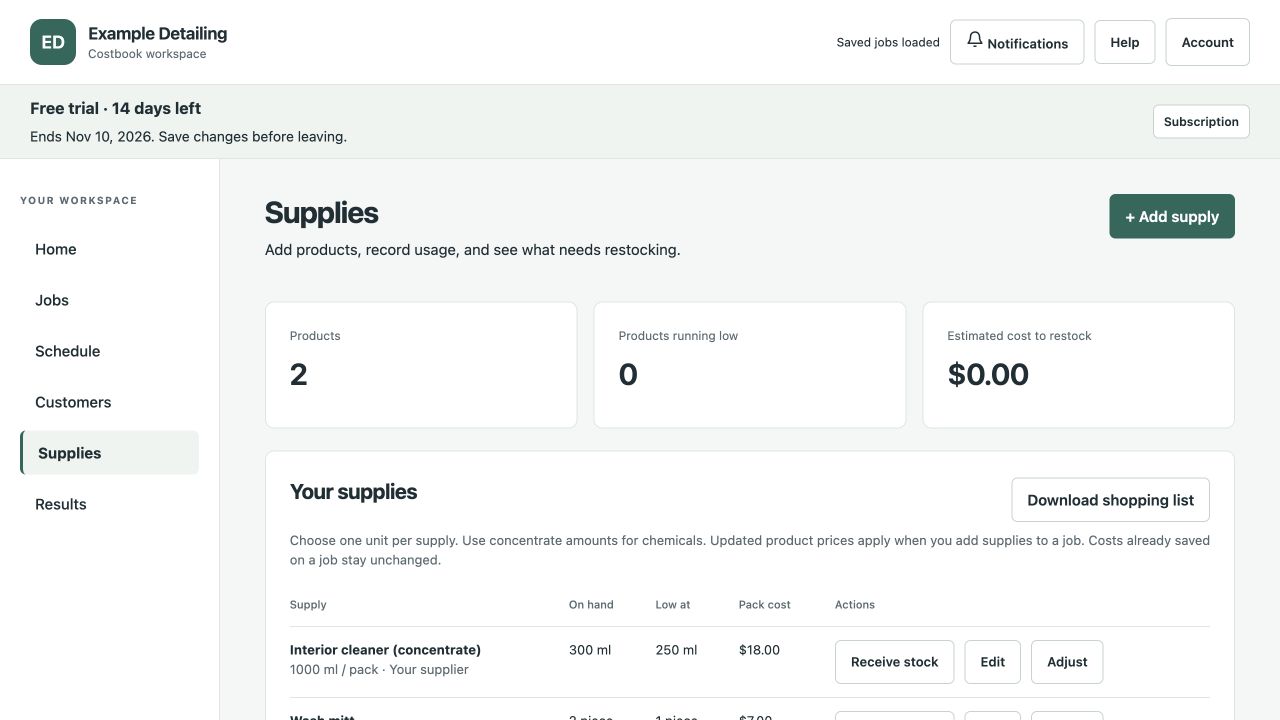
6. Compare the result
Finish the job and compare its actual time, costs and price with the original estimate. Keep that history for the next similar job. Calculations depend on the figures you enter.
Try it with your own business
Create an estimate, add your business details and try the tools free for 14 days. No card needed. Paid subscriptions are not available yet.
Start free trial